Journey GPS Tracker · Version 1.24
From starting a recording to planning routes, adding markers, and exporting tracks, this manual is organized around real tasks; if this is your first time using it, you can begin with the quick start below.
 I want to record a trip
Tap the record button in the center of the bottom bar; when finished, tap the red Stop button.
 red Stop button.
 I want to get to a place
Add a destination in “Places”, tap the distance, and choose a travel mode.
 I want to save or move a track
Export a GPX or KML file from the history track menu.
1. 3-minute quick start
- Open the app and allow location access when prompted. To keep recording after the screen is locked or when switching to another app, we recommend setting the system location permission to “Always”.
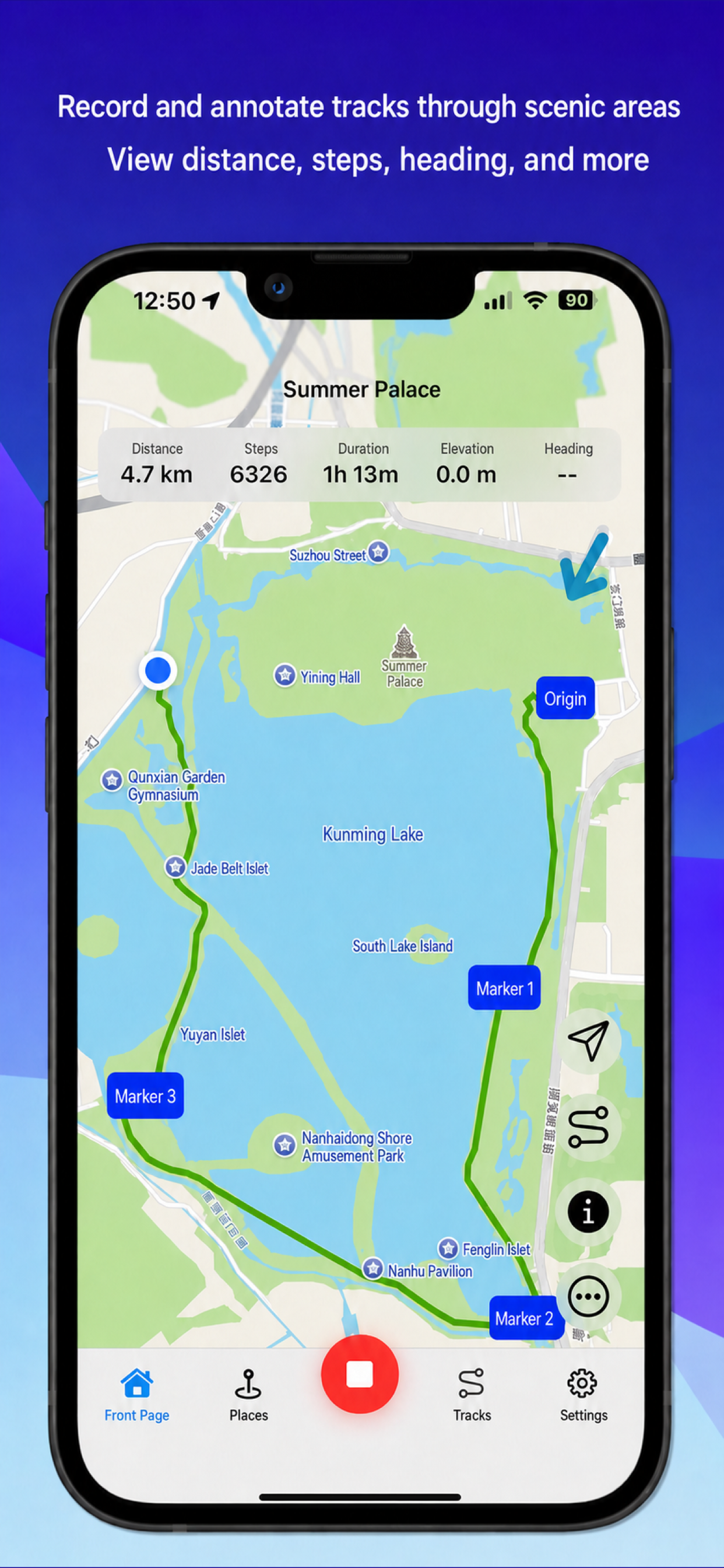
- Tap the circular record button in the center of the bottom navigation bar . After recording starts successfully, the app will automatically switch to the “Front Page” map.
- While moving, you can view distance, steps, duration, elevation, and update time; tap the “Information” button in the lower-right corner of the map to show or hide this data.
- When you need to leave a note along the way, open the “Map operations” menu in the lower-right corner and choose “Add marker”.
- When finished, tap the red Stop button in the center. Then go to “Tracks” to view, edit, or export the recording.
 “Information” button in the lower-right corner of the map to show or hide this data.
 “Map operations” menu in the lower-right corner and choose
  “Add marker”.
New tracks use the place name of your current location by default. To rename one, go to “Tracks”, long-press a track that is “Recording” or already finished, then choose “Edit”.
2. Recording tracks and the map
Speed colors
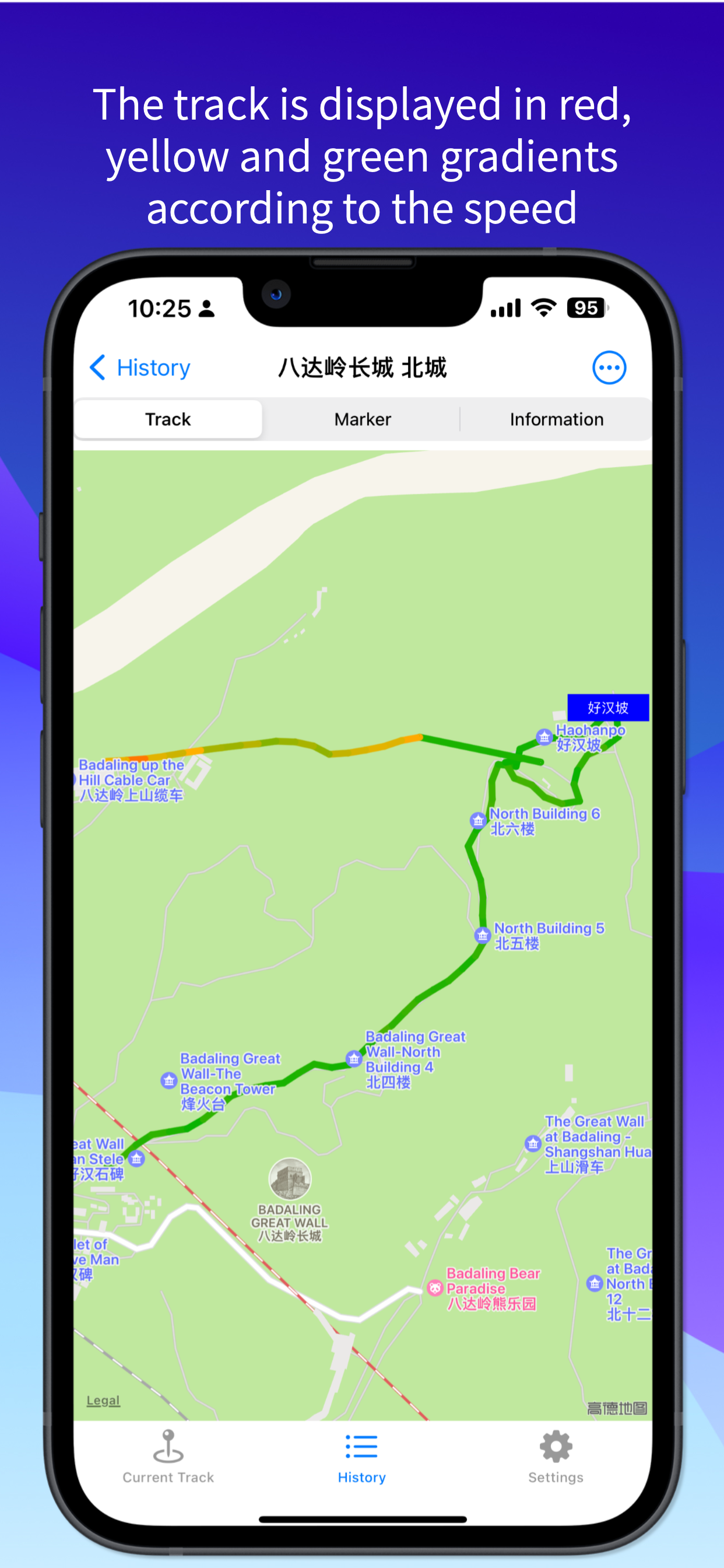
Tracks are shown with a red-yellow-green gradient based on speed to help you quickly judge movement status on different segments:
- Green: slower, usually walking
- Yellow: about 18 km/h, usually cycling
- Red: faster, usually a vehicle
Recording accuracy and GPS status
In “Settings”, you can choose a recording interval of 10–200 meters; the change takes effect starting with the next new track. When the location error exceeds the allowed range, the map shows a yellow “GPS signal weak” message; when no location data is available, it shows a red “No GPS signal” message.
Go to “Settings” → “General Settings”, toggle “GPS Location Correction”, then create a short new track to test it. This option is mainly used to correct coordinate offsets in mainland China.
Front Page map operations
- Current LocationUpdate the location and focus on the current location or the most recently recorded track point.
- RouteView the estimated time, distance, bus stops, and route information for the current route; when route details are open, the buttons in the lower-right corner will be temporarily hidden.
- InformationShow or hide the distance, steps, duration, elevation, and update time at the top of the map.
- Display ReferenceSelect a saved track as a map reference; it will not be merged into the current recording.
- Clear routes and reference tracksShown only when a route or reference track already exists on the map; clear it after confirming.
- Center Stop buttonEnd the current recording; if the recording was started from Apple Watch, it is recommended to end it on the watch.
 Current Location
 Route
Route Display Reference
 Clear routes and reference tracks
In “Settings” → “Map Type”, you can choose Flat, Satellite, or Mix; after enabling “Show heading direction on map”, a blue direction arrow appears in the upper-right corner of the map.
3. Places, groups, and routes
Add a place
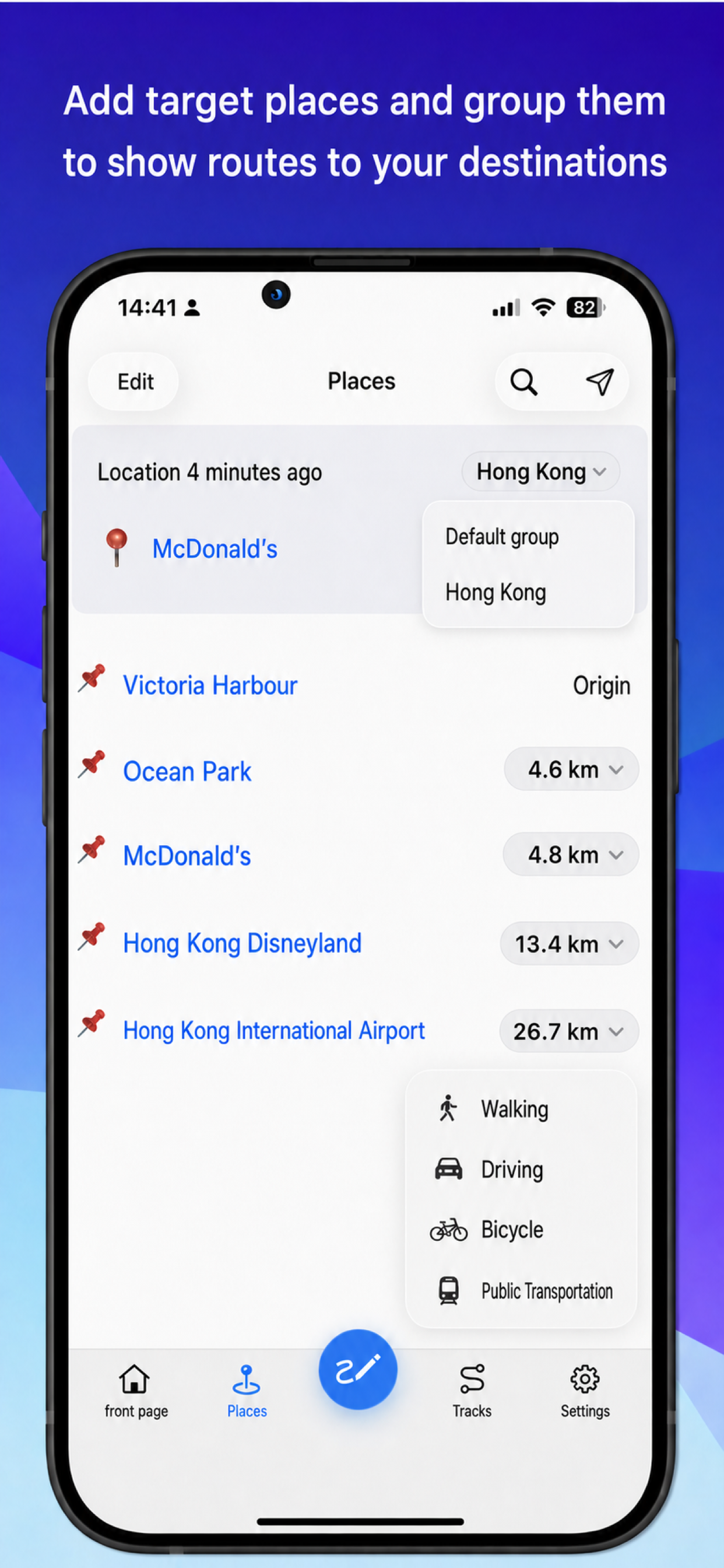
- Tap “Places” at the bottom. The current location appears at the top of the page; if “To be updated” is shown, tap that area or the Current Location button in the upper right.
- Tap the “Search places” button in the upper right, enter a name in the search box, then press “Search” on the keyboard.
- Tap a place name in the search results to add it to the current group. The distance between it and the current origin will be shown on the right.
Near current location: Used by default when a current location or origin is available. The search radius can be adjusted from 1–1000 km, and results are sorted by distance.
By region: Does not depend on the current location; it is automatically used when the current location or origin is unavailable.
On iOS 18 and later, you can choose Apple Maps (default) or Google Maps; iOS 17 uses Google Maps uniformly. Google Maps remembers the last selected region, and if the saved region is unavailable, it falls back to the device’s current region.
Plan and switch routes
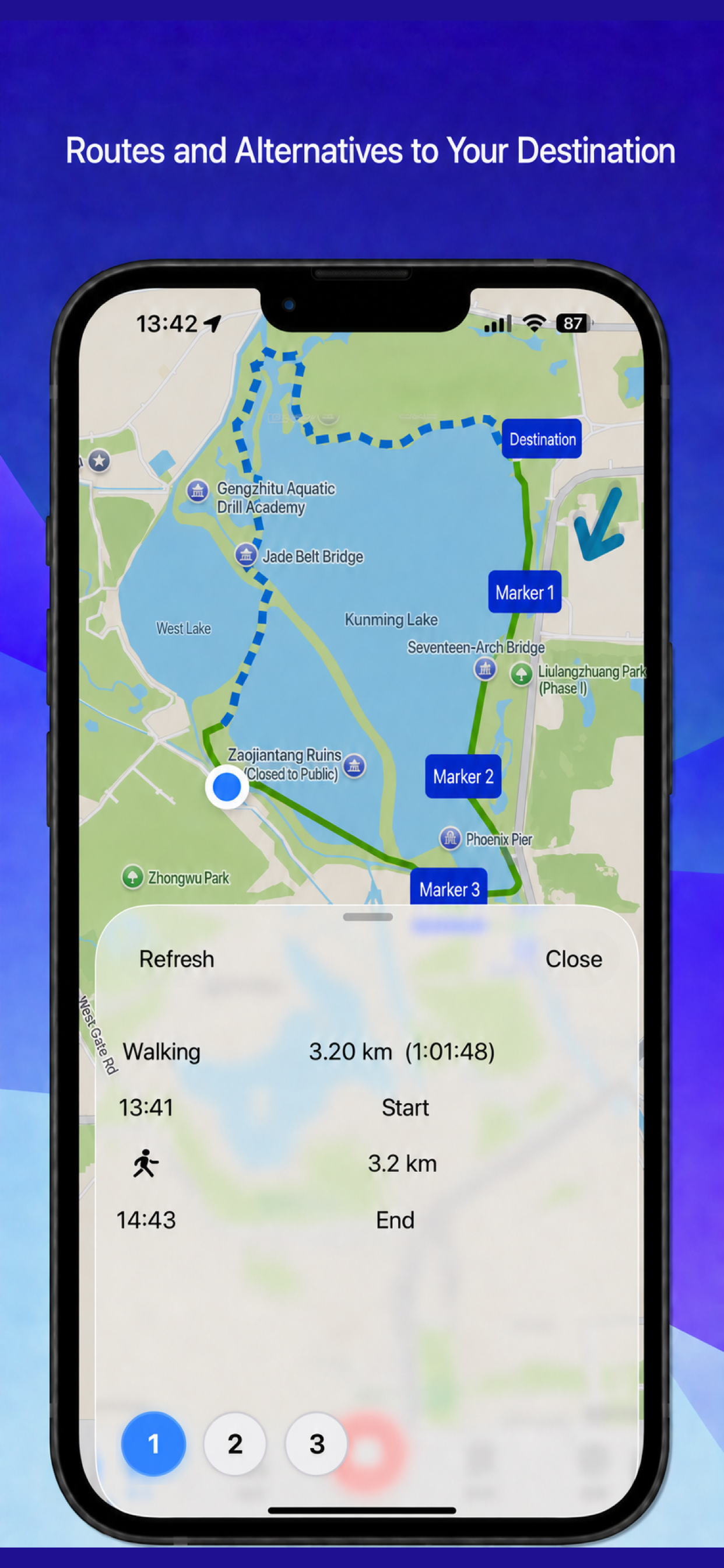
In the place list, tap the distance and choose walking, driving, cycling, or public transportation. After the query is complete, the app switches to the “Front Page” and displays the route. Bus routes use colored solid lines, while walking, driving, and cycling routes use dashed lines.
Open the “Route” details to view the duration, distance, bus stops, and route. When multiple candidate routes are available, circular number buttons appear at the bottom; the current route uses the accent color, and you can tap another number to switch.
Group and place operations
Use the group menu on the upper right of the page to switch groups; “Default group” contains places that are not yet grouped. Tap “Edit” in the upper left, select multiple places, and enter a name to batch group them; newly added places will then automatically join the currently displayed group.
- Set as originChange the origin used for distance calculations; after entering the “Front Page”, the map will focus on that origin.
- Edit / DeleteChange the name, add notes, or delete places you no longer need.
- Weather / Street ViewView the next 24 hours and 7-day weather, or open Street View where supported.
- Nearby facilitiesSearch for facilities such as restaurants and convenience stores; the search radius can be adjusted in “Settings”. After long-pressing a facility type and choosing “Add to favorites”, that facility type will appear in the “Map operations” menu in the lower-right corner of the Front Page; tap it to quickly search for nearby places of the same type from your current location.
4. Using Apple Watch
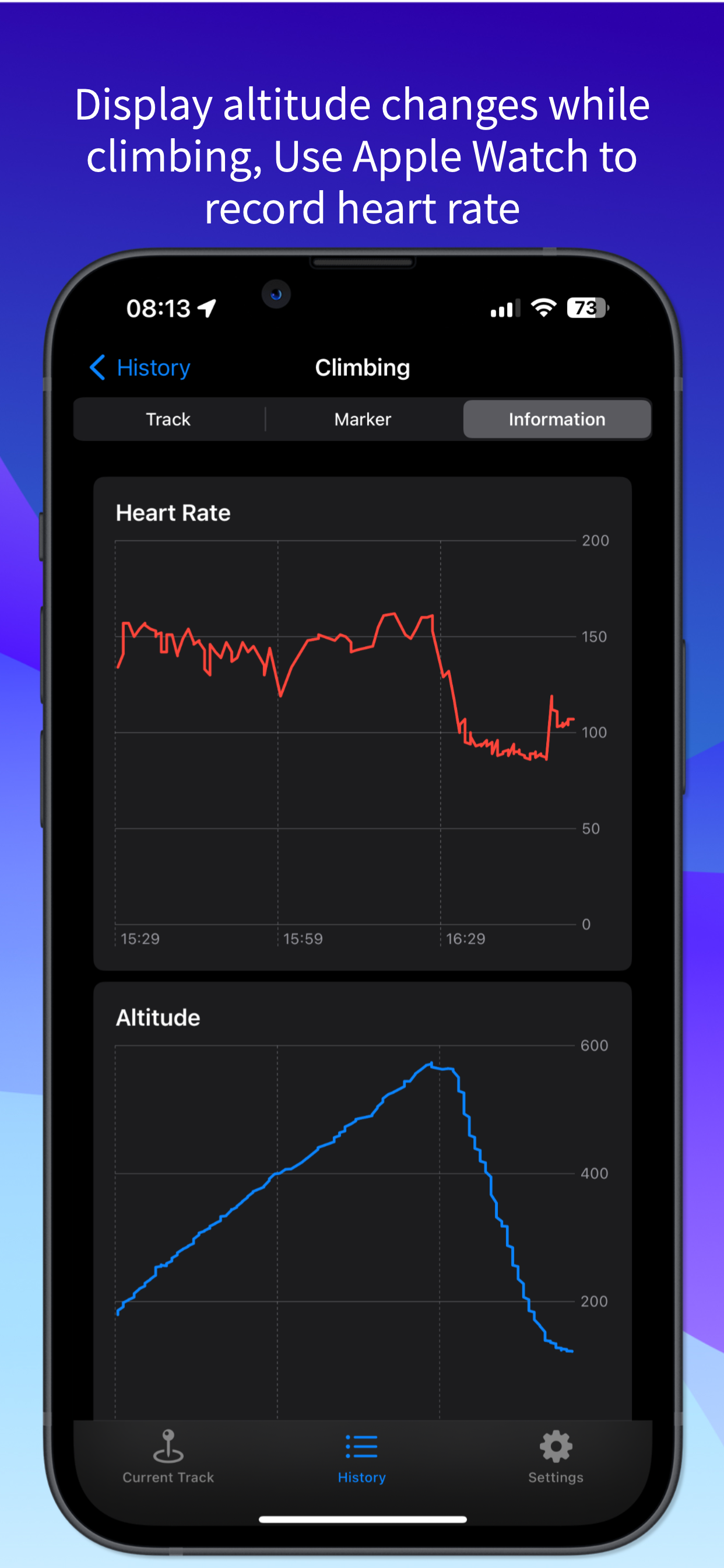
- Open “Journey GPS Tracker” on Apple Watch. When prompted for permission to read and write health data, allow all.
- Select “Cycling”, “Mountaineering”, “Running”, or “Walking” based on the activity type.
- Open the app on your iPhone and confirm that the “Tracks” page shows a recording track named after your current location; if a location prompt appears, allow location access.
- While recording, even if you exit the iPhone app, Apple Watch can continue recording and will automatically sync the next time you open the iPhone app.
The watch shows calories, distance, heart rate, steps, the time of the most recent GPS coordinate send, and battery level. When the GPS update time is less than 60 seconds, it shows “Just now”; when the battery is below 20%, it shows a low-battery icon.
Swipe left on the watch interface to pause, continue, end, or mark the track. After ending, you can view the record in the workout section of the built-in “Fitness” app on the iPhone.
It is recommended to end them directly on Apple Watch to avoid the phone and watch ending states getting out of sync.
5. Adding photos and markers
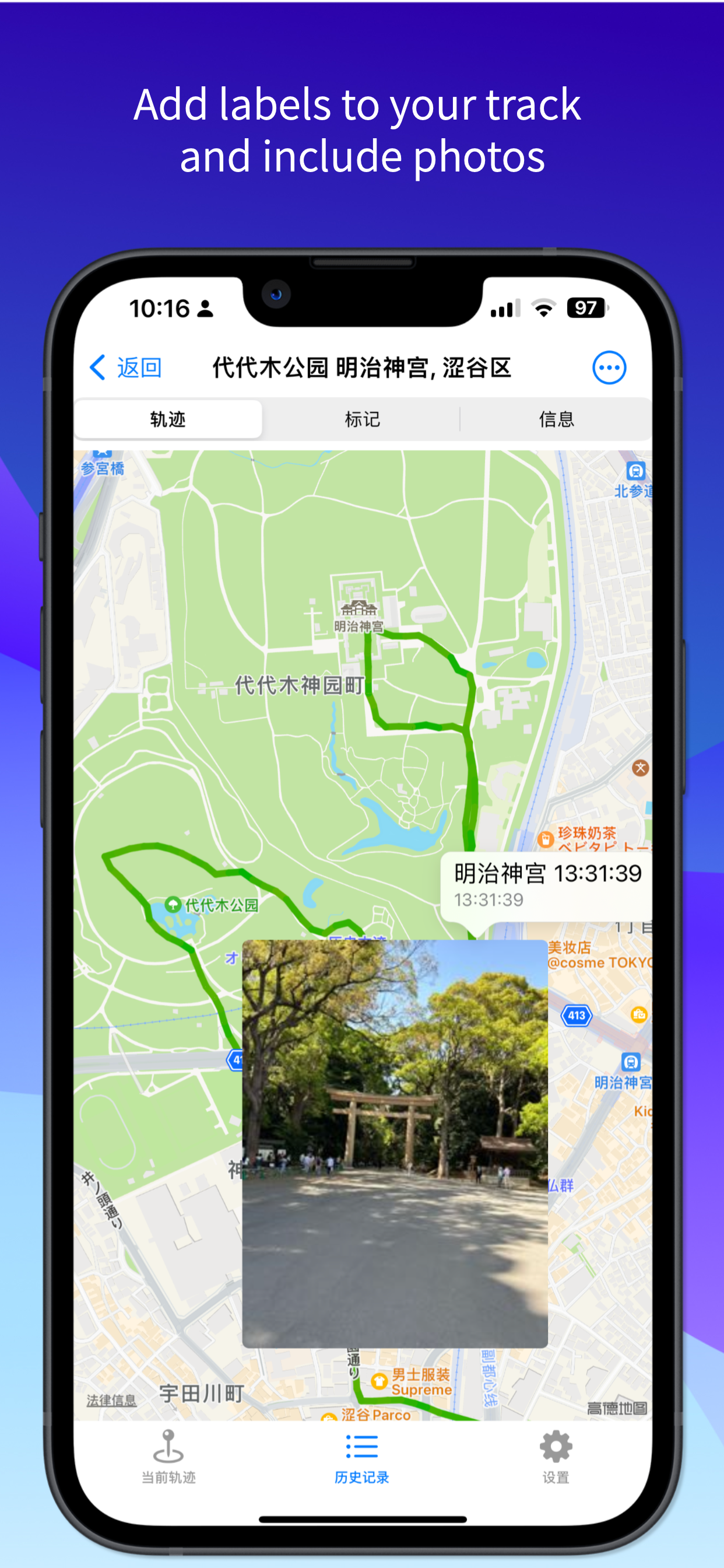
- After you start recording and obtain the latest track point, open the “Map operations” menu in the lower-right corner of the “Front Page” and choose “Add marker”.
- After taking a photo or closing the capture screen, edit the marker name; the default name comes from the marker location.
- You can attach a photo from the photo library, retake it, or swipe on the image to select a green frame and then tap “Cut”.
- Tap “Add” at the top to save the marker; the “Save” button on the capture screen can save the photo to the system photo library separately.
Tap a map marker to view its name and thumbnail. Go to “Tracks” → choose a track → “Marker” to browse all markers for that track; long-press a name to edit or delete it, and tap the image to view it fullscreen with pinch-to-zoom gestures.
6. Manage and export tracks
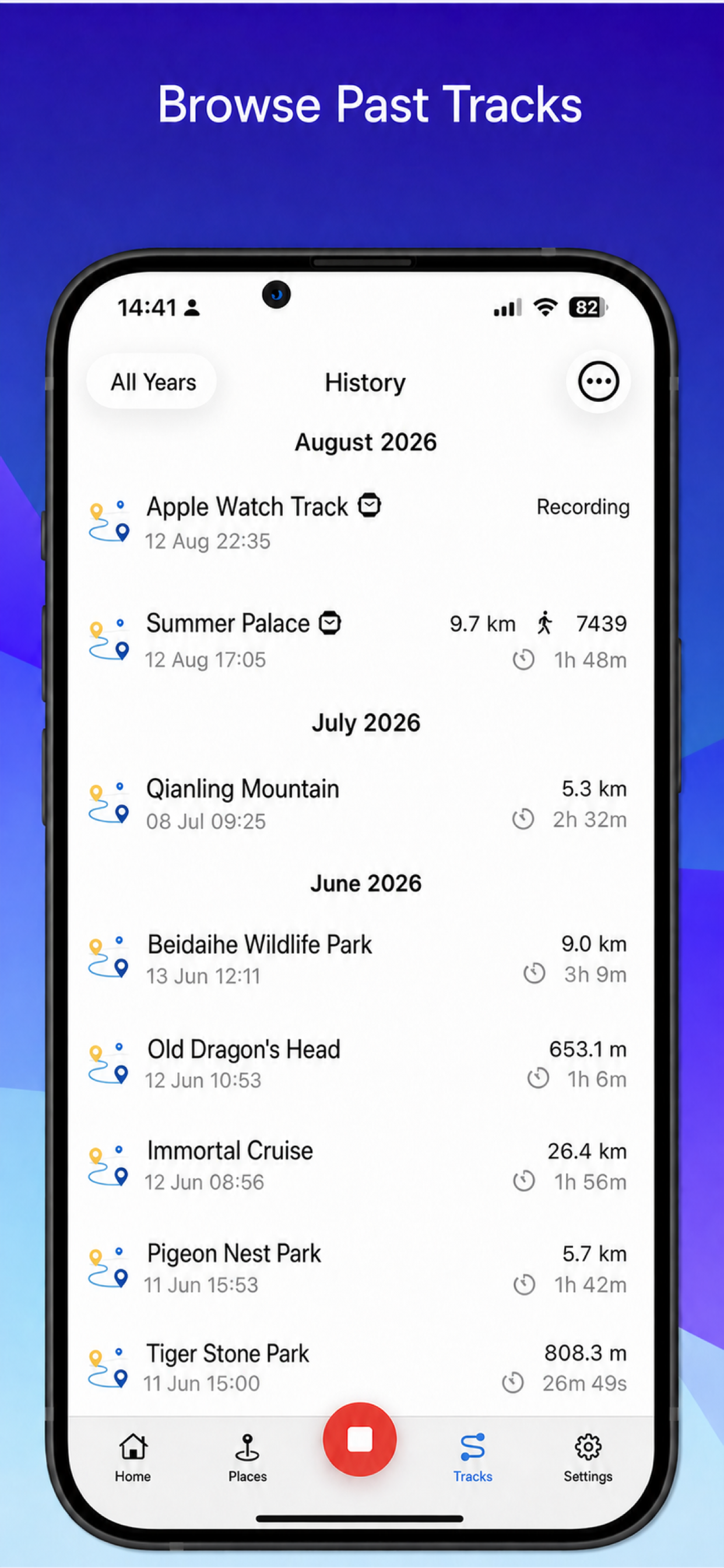
Tap “Tracks” at the bottom to view all records, including name, date, distance, and duration. Long-press a track name to choose “Edit” or “Delete”.
To merge two track segments, long-press one segment and drag it onto the target track; after confirmation, the data will move to the target track and the original dragged track will be deleted.
Track details menu
- Export GPXExport a standard GPX file, which can be imported on another device by choosing “Import GPX Track” on the history track page. GPX does not include steps or marker photos.
- Export KMLExport a KML file for viewing in map tools that support this format.
- Edit Track RangeAdjust the range to keep, then tap “Cut” to delete the currently hidden portion of the track.
- Use as reference trackWhen recording a new track, you can choose an old track as a reference on the Front Page; this does not modify or merge the original track.
7. Settings
Common settings
 Common settings
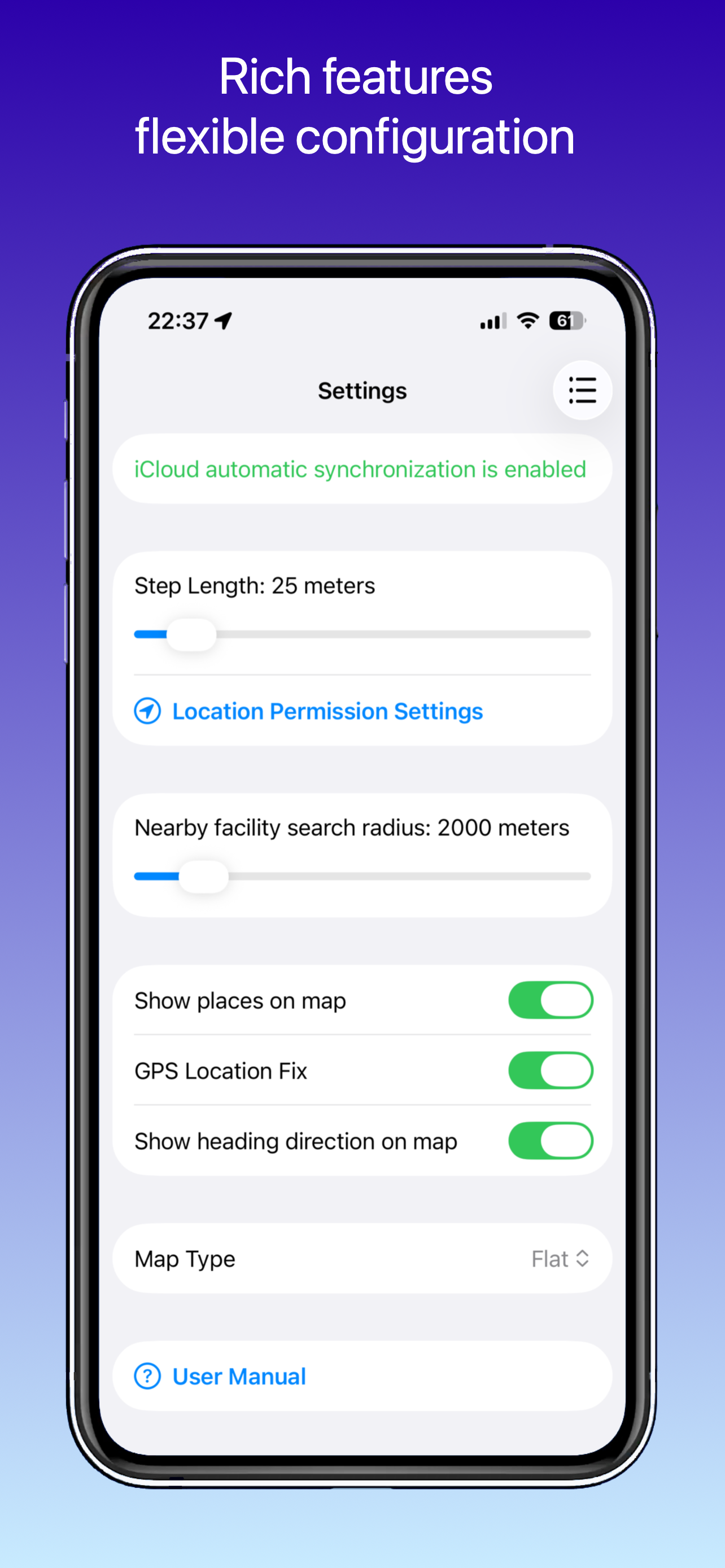
- Recording intervalSet the distance between adjacent track points; the new value takes effect starting with the next new track.
- Location Permission SettingsTo continue recording in the background, we recommend setting the system location permission to “Always”.
- Nearby facilities search radiusSet the range used when searching for facilities such as restaurants and convenience stores on the Places page.
- Map display rangeSet the default range shown on the Front Page map.
- Show places on mapControl whether added places appear on the Front Page map.
- GPS Location CorrectionCorrect coordinate offsets in mainland China; after switching it on, create a short test track.
- Show heading directionDisplay the current heading arrow in the upper-right corner of the map.
- Map TypeChoose Flat, Satellite, or Mix.
User Center
The User Center includes iCloud Sync, User Manual, Questions, Feedback, Purchase, and About. Questions, Feedback, Purchase, and About open in pop-up pages; tap “Complete” in the upper right to return to Settings.
Comments
Comments are reviewed before they appear below the article.
No comments yet. Be the first to comment.