Handy Expense Tracker 1.46 User Guide
From quickly logging a transaction to text and image recognition, category management, chart summaries, and data backups, this guide explains the most common tasks on iPhone, iPad, and Mac.
At the bottom of the Records page, tap “Expense” or “Income”, then choose Manual, Text, Camera, or Image.
Browse by date, category, tag, or payment method, or search for keywords in amounts, merchants, and details.
Data is synced automatically through iCloud; you can also export files regularly to keep independent backups.
1. Recording transactions
1.1 Adding a record
After opening the app, tap the “Expense” or “Income” button at the bottom, then choose an adding method:
- Add manually: Enter the category, amount, and other information in order.
- Add via text: Analyze text from a recording, clipboard, or manual input to create an income or expense record.
- Add via camera: Open the camera to photograph a receipt, bill, or order.
- Add via image: Choose an image from your library, or share or drag and drop an image from another app into Handy Expense Tracker.
Steps for manual entry
- Category: Select the category for the record, then proceed to “Subcategory”.
- Subcategory: Select an income or expense subcategory.
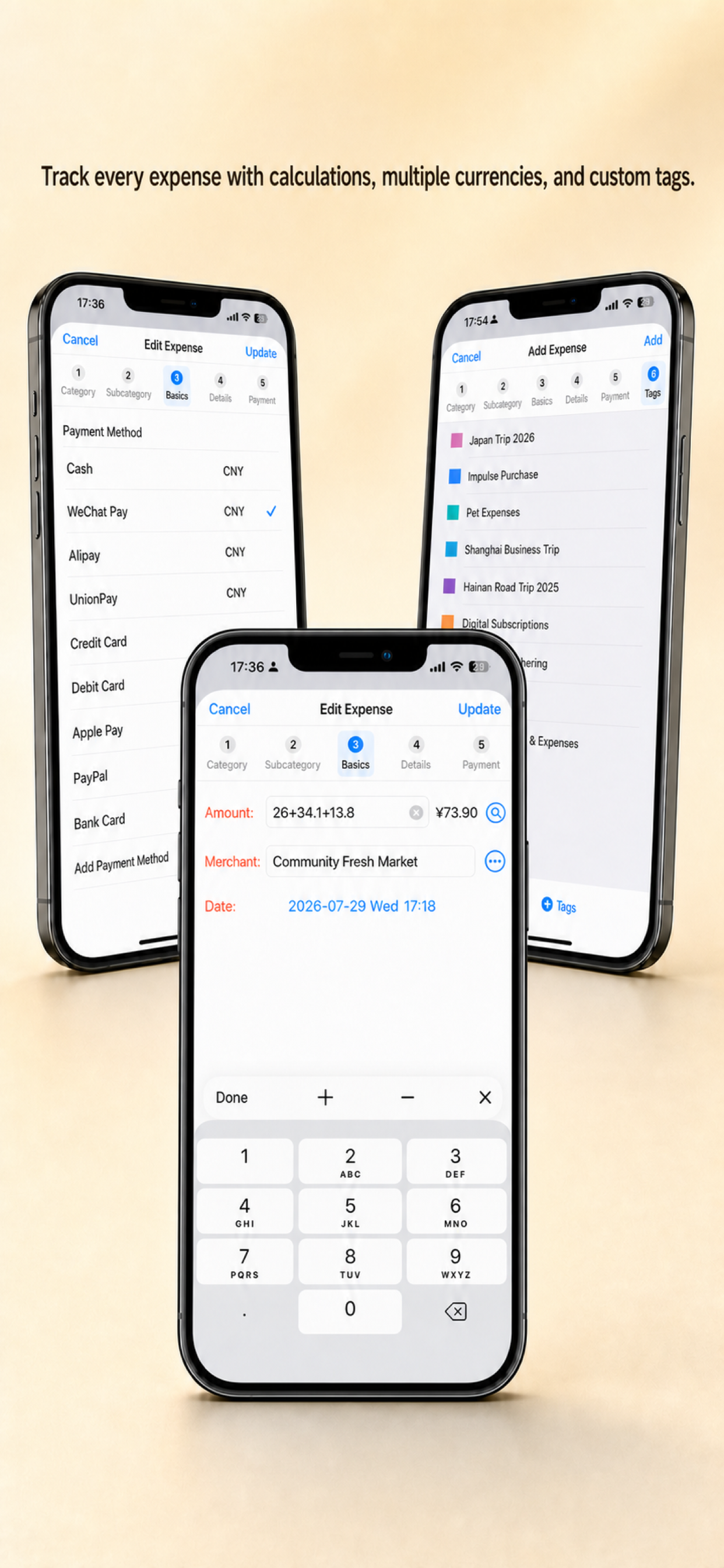
- Basic: Enter the amount, merchant, and date. Amounts support simple calculations using
+,-, and*. - Details: Add notes; you can also use voice input.
- Payment: Select a payment method, or choose “No payment method”.
- Tags: You can select multiple tags; tap a selected tag again to cancel it.
The amount and subcategory are required. At any step from “Basic” through “Tags”, you can tap “Add” in the upper-right corner to save without proceeding through every page.
1.2 Adding a record via camera or image
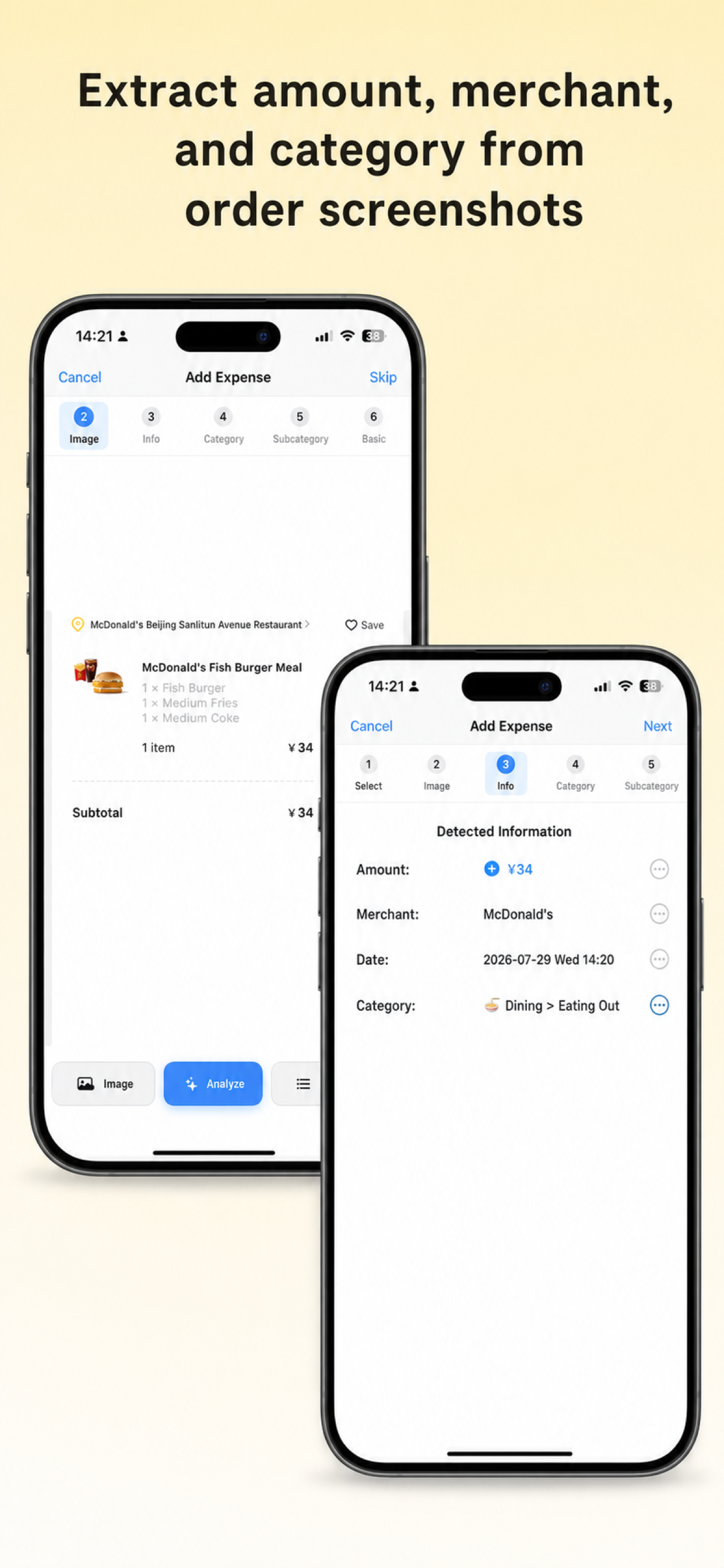
- Select: Take a photo, choose an image from your library, or share or drag and drop an image from another app.
- Image: View and adjust the image. Swipe to create a green selection; “Edit” lets you crop, rotate, or clear the image.
- Analyze: Recognize the content in the selected area; if there is no selection, the entire image is recognized.
- Confirm: Select the recognized amount, date, merchant, and category, then close the results window and continue entering information.
- Save: Check the basic information, details, payment method, and tags, then tap “Add”.
We recommend selecting the order or bill area in the image first, then tapping “Analyze”. A merchant is recognized automatically only if it has appeared in previous records and also appears in the image text.
When adding a second or additional image, selecting “Merge with existing images” appends the new image below the existing image; choosing not to merge replaces the existing image. Image analysis retains the most recent result; when analyzing again, you can display the previous result or analyze again.
1.3 Adding income or expenses via text
At the bottom of the Records page, first tap “Expense” or “Income”, then choose “Add via text”. The app analyzes the text according to the currently selected transaction type and recommends categories from the corresponding income or expense subcategories.
- Choose a text source: Choose “Recording”, “Clipboard”, or “Manual input”. Recording is suitable for speaking a transaction directly, such as “Lunch McDonald’s 20.5”; before using the clipboard, copy the relevant text from an order, bill, or transaction notification.
- Check the text: Recording recognition results or clipboard content opens in the details editing page; when using “Manual input”, you can enter the description directly. We recommend including the purpose or merchant, amount, and date, such as “August salary 12,000 yuan received today” for income.
- Analyze: Tap “Analyze” and the app will find amount, date, merchant, and category information in the text.
- Confirm the results: Under “The following information was detected”, select the amount you need; when there are multiple candidates, you can adjust the merchant, date, and category. You can continue making changes after closing the results page.
- Complete and save: If no category was recognized, tap “Next” to manually select a category and subcategory; then check the amount, merchant, date, details, payment method, and tags, and tap “Add” in the upper-right corner to save.
Try to include the amount and its purpose in the same passage. Analysis results are only candidate information awaiting confirmation. Check the transaction type, amount, date, and category before saving; any unrecognized or inaccurate field can be edited manually.
1.4 Editing records and flexible input
Long-press a record and choose “Edit” to modify its category, subcategory, amount, merchant, date, details, payment method, tags, and images. When finished, tap “Update” in the upper-right corner on the “Basic”, “Details”, “Payment”, or “Tags” step.
- Amounts support simple formulas, making it easy to combine multiple expenses.
- Payment methods can use different currencies; foreign-currency records display the converted amount in the local currency.
- Multiple tags can be selected, which is useful for organizing records across trips, projects, or reimbursement status.
2. Browsing and finding records
2.1 Viewing records
- Choose “Records” from the upper-right menu to view all records.
- Open “Category Management” and select a subcategory to view records in that subcategory.
- Open “Tag Management” or “Payment Management” to view records with the corresponding tag or payment method.
- Select conditions level by level in the chart summary to view records that match them.
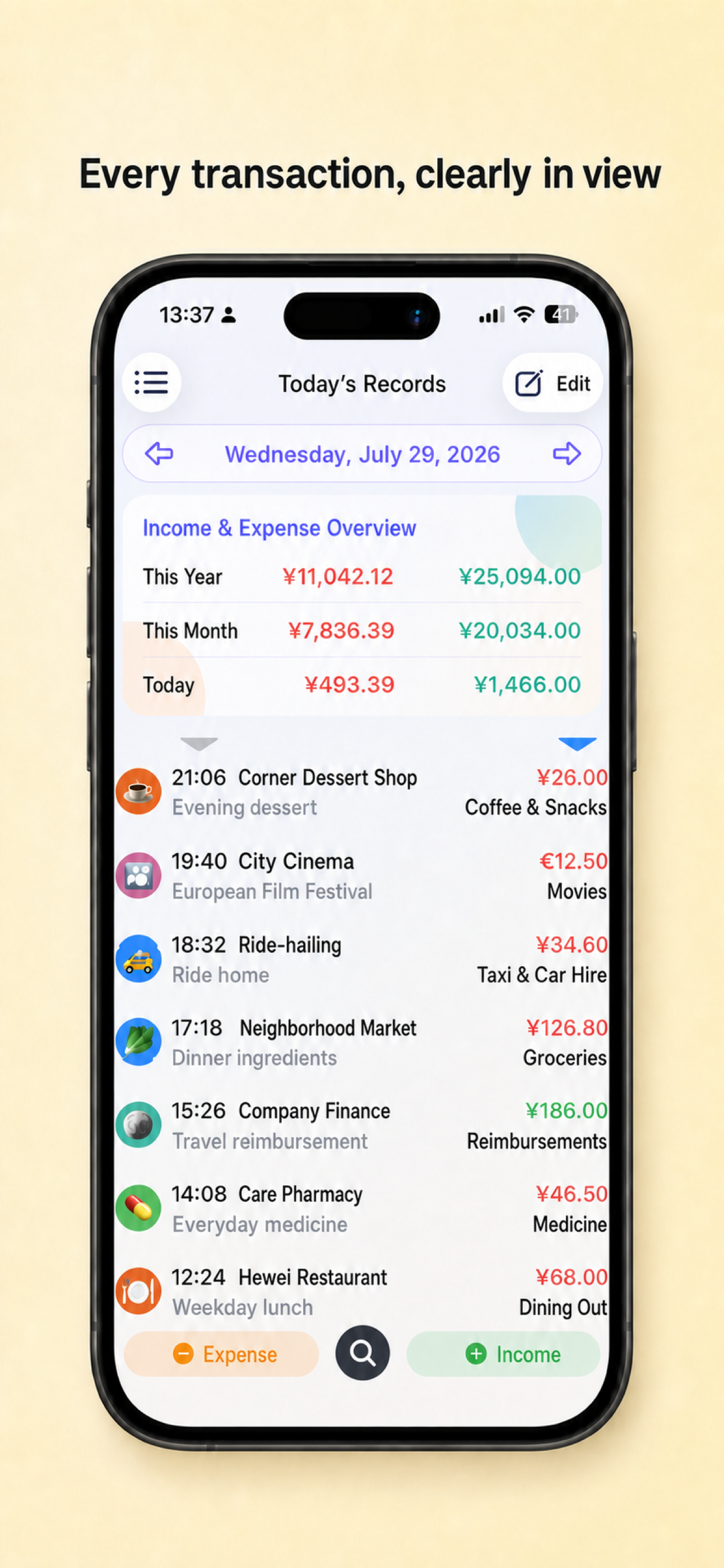
The Records page displays income and expense totals for the selected date range. Tap the date to switch to the full year, full month, or a single day; tap a record to expand its details, or long-press it to edit or delete it.
2.2 Batch processing, sorting, and searching
Tap “Edit” in the upper-left corner to enter batch mode, where you can delete records, add tags, or move multiple records to another subcategory.
When the list contains multiple records, a  sorting icon appears above the first record. Tap the icon on the left to sort by time, or the icon on the right to sort by amount.
Amount, subcategory, and details searches are no longer available when adding a record. To reuse an existing record, find and copy the target record using one of the following methods:
- Search by amountTap the search button at the bottom and enter an amount; in the search results, long-press the target record and choose “Copy” from the shortcut menu.
- Search detailsTap the search button at the bottom and enter a keyword; in the search results, long-press the target record and choose “Copy” from the shortcut menu.
- Search by subcategoryOpen “Category Management” and select the target subcategory. If there are no records for the day, tap the monthly or yearly records entry provided on the page; after finding the target record, long-press it and choose “Copy” from the shortcut menu.
When you start a search from a category, tag, or payment method page, results are automatically limited to the current scope.
3. Charts and quick access
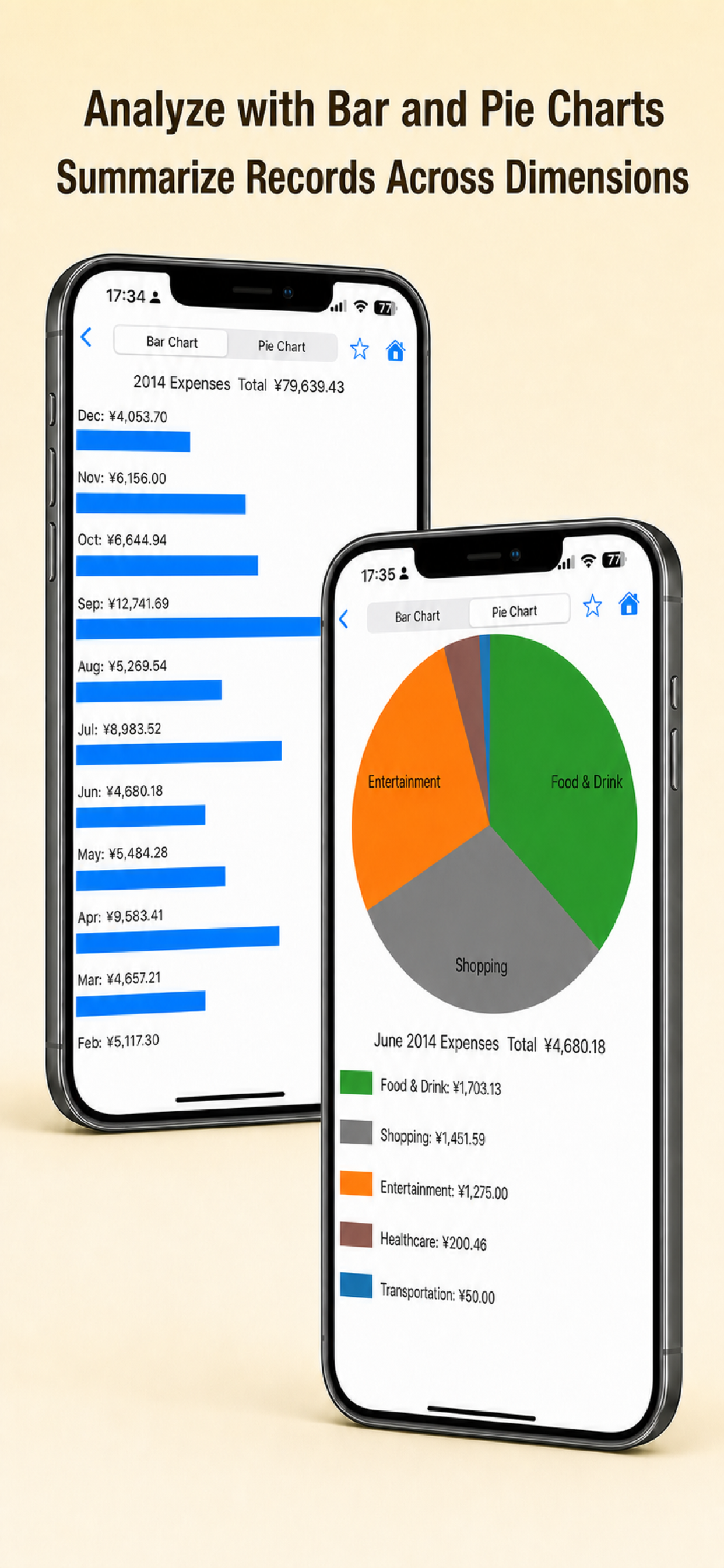
On the “Charts” home page, select total income or total expenses to summarize them level by level by year, month, category, subcategory, tag, payment method, and other fields. Tap “Edit” next to “Summary method and order” to change the statistical dimensions and their order.
- Use the buttons at the top to switch between a bar chart and a pie chart.
- Tap the star to add the current summary page to quick access; tap it again to remove it.
- If the year, month, or date in the path matches the current time, you can choose “Always keep the date up to date” when saving. For example, “July 2026 shopping expenses” will automatically become “Shopping expenses this month” the following month.
4. Categories, tags, and payment methods
4.1 Categories and subcategories
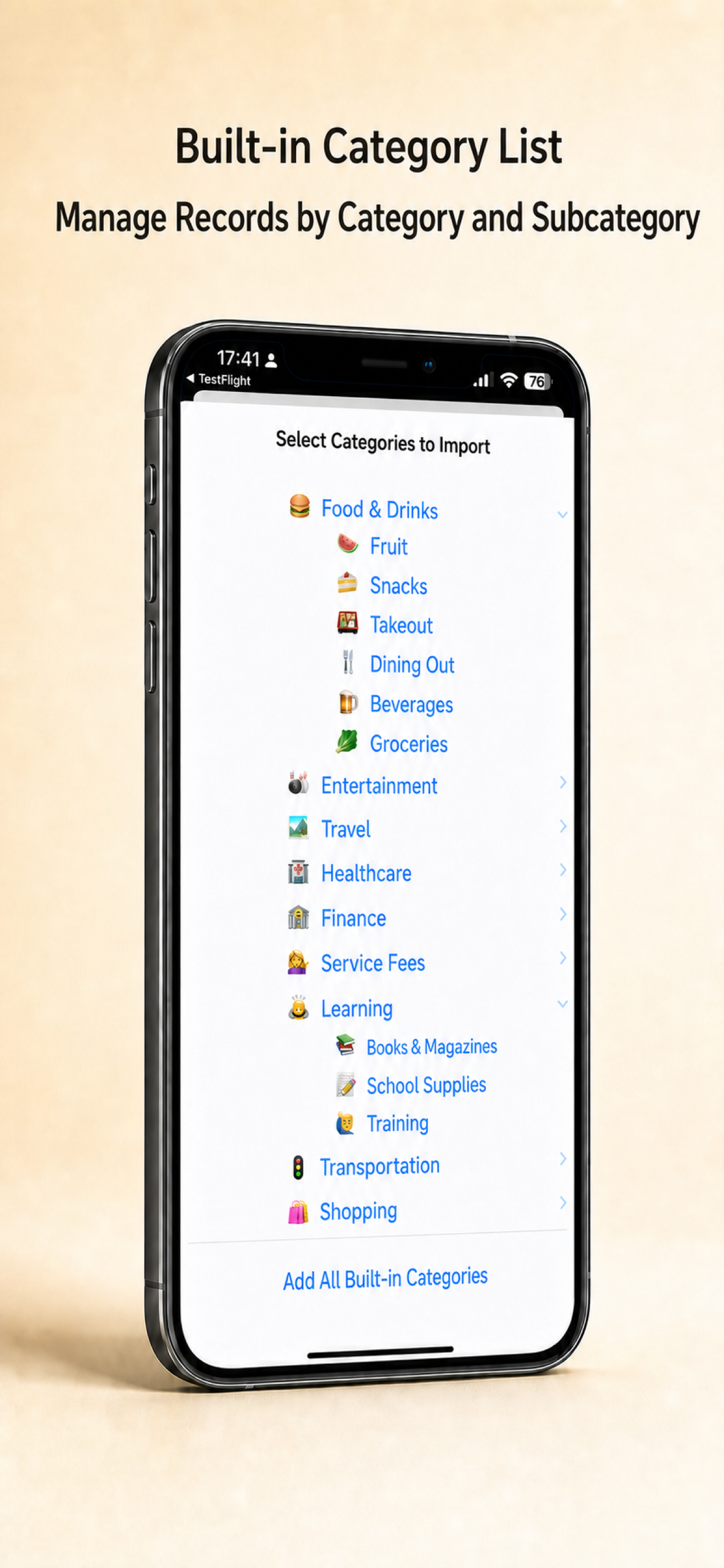
Open “Category Management” to add, edit, and adjust income or expense categories. When using the app for the first time, you can also select the categories you need from the built-in category list and continue modifying them according to your accounting habits.
Importing the built-in category list
- Open the list: Open “Category Management” and tap “Import Category List” in the category list.
- Choose a transaction type: Use the “Expense/Income” switch at the top to view the corresponding built-in categories.
- Select categories: Tap a category name to select or deselect all subcategories under it; you can also expand it and select subcategories individually. For batch operations, use “Select All” or “Clear Selection” at the bottom.
- Confirm the import: After making your selections, tap “Import” in the upper-right corner and confirm the operation. The app creates the selected subcategories and their parent categories, then displays the number of categories and subcategories imported.
Built-in subcategories that already exist will not appear in the selection list again. If the page says “All built-in categories have been added”, there are no more items available to import for the current transaction type.
4.2 Tags
Tags are useful for information that cannot be fully represented by categories alone, such as trips, projects, family members, or reimbursement status. A record can use multiple tags at the same time.
4.3 Payment methods
Payment methods can have a currency set. When using a foreign-currency payment method, the app converts the amount to the local currency using the current exchange rate; it recalculates automatically after the amount or payment method is changed.
5. Using the Mac version
The Mac version uses the same record fields as the iPhone and iPad versions and can sync data through iCloud. The main difference is that the Mac version uses the app menu at the top of the screen and multiple separate windows to switch between features.
From the “Handy Expense Tracker” menu at the top of the Mac screen, choose “Records”, “Charts”, “Category Management”, “Tag Management”, or “Payment Method Management”. These features open in separate windows that can be used side by side on the desktop.
5.1 Window layouts
- RecordsDisplays income and expense records for browsing by date and is the main window for adding, viewing, and organizing records.
- ChartsSelect summary charts on the left and view the selected statistics on the right. After entering a deeper level, use the back button in the toolbar to return to the previous level.
- Category ManagementUses a three-column layout: select a category in the left column, a subcategory in the middle column, and view records under that subcategory in the right column.
- Tag ManagementManage and select tags on the left and view records using the selected tag on the right.
- Payment Method ManagementManage and select payment methods on the left and view records using the selected payment method on the right.
5.2 Settings and other features
- “Template Management”, “Purchase”, “Questions”, and “Feedback” open in auxiliary windows; selecting another item switches that window to the corresponding content.
- “Settings” and “About” can be opened from the macOS app menu.
- When you choose “Import Built-in Category List”, the app opens the “Category Management” window and lets you import preset categories and subcategories.
- Choose “Help” from the “Help” menu to reopen this manual at any time.
When adding or editing records and managing charts, categories, tags, and payment methods, the field meanings are the same as in the following sections. If authentication is enabled, you must authenticate with Touch ID or your Mac login password whenever you enter a feature window.
6. Settings, syncing, and backups
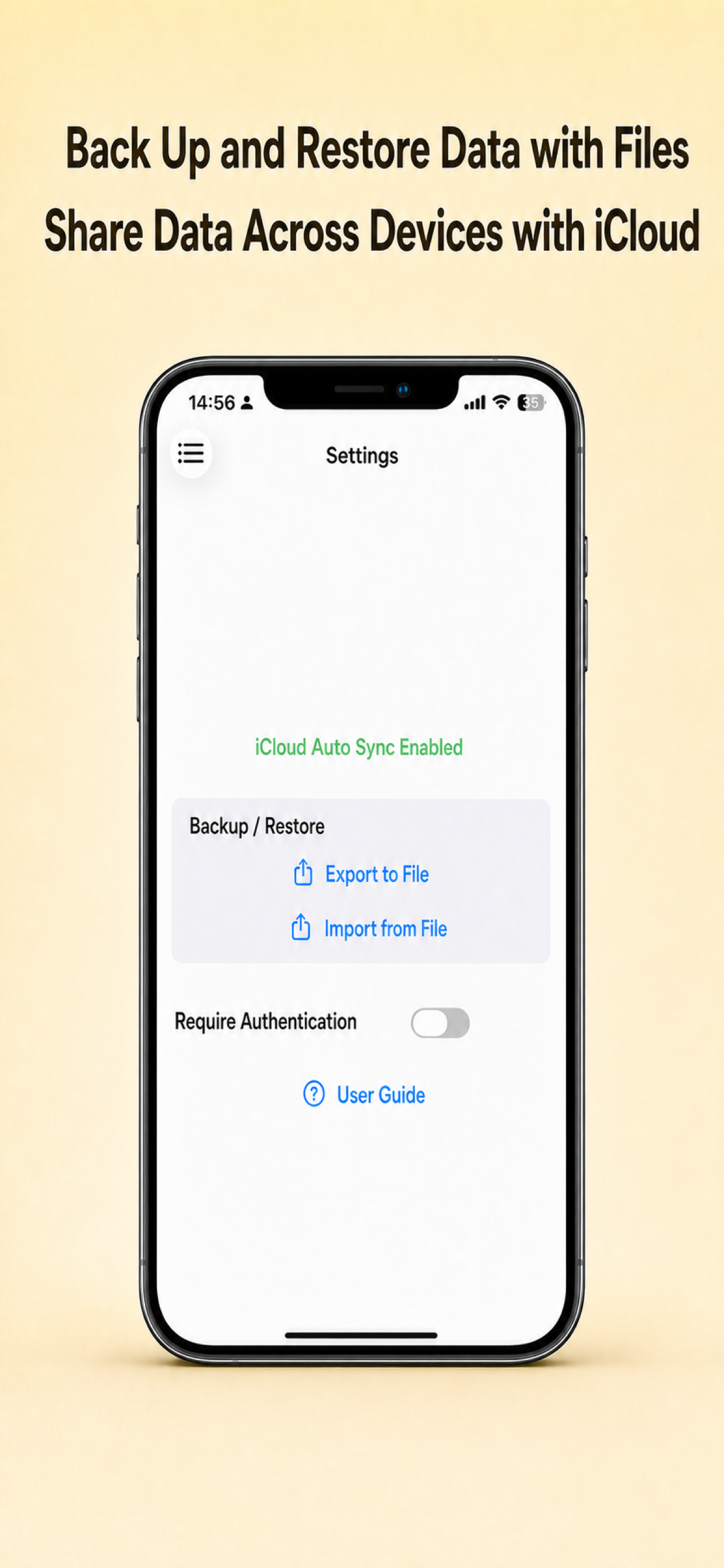
- Automatic iCloud syncUse the same iCloud account to sync data automatically across multiple devices.
- Add Record buttonUnder “When the button is tapped”, choose “Show Add Method Menu”, or specify one of “Add Manually”, “Add via Text”, “Add via Camera”, or “Add via Image”. Available options vary by device.
- Require authenticationWhen enabled, the app uses Face ID, Touch ID, or the device passcode to verify your identity each time you enter the app.
- Export to FileExport categories, subcategories, tags, payment methods, and records as a CSV file. Images in records are not exported.
- Import from FileRestore data from a CSV file; records that already exist locally are ignored.
After specifying an adding method, tapping “Income” or “Expense” on the Records page opens that method directly without first displaying the menu. To temporarily use another method, long-press the “Income/Expense” button on iPhone or iPad; on Mac, right-click the button.
iCloud sync keeps data consistent across devices but is not the same as a historical backup. We recommend exporting important data regularly and storing it securely.
7. Managing templates
Open “Template Management” from the upper-right menu to create records generated automatically each month, such as a monthly cloud service fee. If no date is specified for a month, the record is generated on the last day of that month; for example, if it is set to the 31st of each month, it will be generated on February 28 or 29.
8. Issues and feedback
Open “Feedback” from the upper-right menu. If app notification permission is disabled, a prompt appears when you open the Questions page; follow the instructions to open System Settings and enable notifications so you can receive replies promptly.
9. Import/export file format
Each row in a CSV file represents a category, subcategory, record, tag, or payment method, with fields separated by English commas. English commas in field content are represented by the full-width comma ,, and line breaks are represented by the character n.
Do not change IDs or the field order without good reason. Before making batch changes to a file, save the original export file and validate the changes with a small amount of test data.
9.1 Categories
| Column | Field | Description |
|---|---|---|
| 1 | Type | Fixed at 0, indicating a category row |
| 2 | Category ID | A string that uniquely identifies the category |
| 3 | Category name | The category’s display name |
9.2 Subcategories
| Column | Field | Description |
|---|---|---|
| 1 | Type | Fixed at 1, indicating a subcategory row |
| 2 | Subcategory ID | A string that uniquely identifies the subcategory |
| 3 | Subcategory name | The subcategory’s display name |
| 4 | Parent category ID | The ID of the category to which the subcategory belongs |
| 5 | Transaction type | true indicates income; false indicates expenses |
9.3 Records
| Column | Field | Description |
|---|---|---|
| 1 | Type | Fixed at 2, indicating a record row |
| 2 | Record ID | A string that uniquely identifies the record |
| 3 | Parent subcategory ID | The ID of the subcategory to which the record belongs |
| 4 | Record date | In the format year-month-day hour:minute, for example 2026-07-29 14:20 |
| 5 | Amount | The record amount, for example 100.00 |
| 6 | Reserved field | Fixed at 0 |
| 7 | Merchant | The merchant name |
| 8 | Details | The record’s detailed text |
| 9 | Tag ID | The ID of a tag associated with the record |
| 10 | Payment method ID | The ID of the payment method used for the record |
| 11 | Foreign-currency amount | The foreign-currency amount when a foreign-currency payment method is used |
9.4 Tags
| Column | Field | Description |
|---|---|---|
| 1 | Type | Fixed at 3, indicating a tag row |
| 2 | Tag ID | A string that uniquely identifies the tag |
| 3 | Tag name | The tag’s display name |
| 4 | Tag color | RGB values range from 0 to 1 and are separated by |, for example 0.5|0|0.5 |
9.5 Payment methods
| Column | Field | Description |
|---|---|---|
| 1 | Type | Fixed at 4, indicating a payment method row |
| 2 | Payment method ID | A string that uniquely identifies the payment method |
| 3 | Payment method name | The payment method’s display name |
| 4 | Currency code | The currency used by the payment method, for example CNY |
Comments
Comments are reviewed before they appear below the article.
No comments yet. Be the first to comment.