1. Recording Expenses and Income
1.1 Add Record
After opening the app, tap the “+ Expense/Income” button at the bottom. In the pop-up window, fill in the relevant information and then tap “Add” in the upper right corner. The following information can be entered:
| Amount | Enter the income or expense amount. You can enter +, -, and * for simple calculations. | After entering the amount, tap  on the right to search the 5 most recent records with the same amount and fill in their information. on the right to search the 5 most recent records with the same amount and fill in their information. |
| Merchant | Enter the merchant involved in the income or expense record. | Tap the  button to the right of Merchant to display a list of merchants previously recorded under the same subcategory. button to the right of Merchant to display a list of merchants previously recorded under the same subcategory. |
| Category | Set the category for the record. The system divides account records into three levels of management: Category -> Subcategory -> Record. Tap the category information to choose, add, or delete categories and subcategories on the pop-up page. | 1. After adding a category, you also need to add subcategories within it. Categories are used only for grouping subcategories, which are used to group income and expense records. 2. When adding a subcategory, you need to select the “Income” or “Expense” type. When adding an expense record, you can only select expense subcategories (income subcategories and categories that do not contain income subcategories are hidden); the same applies when adding an income record. 3. When using the app for the first time, you can tap “Import built-in category list” at the bottom of the pop-up screen and choose suitable categories and subcategories to add. Later, you can tap the  menu in the upper right corner, go to “Category Management”, then open the menu and select “Import”. menu in the upper right corner, go to “Category Management”, then open the menu and select “Import”.4. Long Press a category or subcategory name, and in the pop-up menu you can select “Edit” or “Delete” the category or subcategory. Note that after deletion, its subcategories and records will also be deleted. |
| Labels | Set labels for records, such as expenses for a trip or spending for an event. Tap the plus sign to the right of Labels and select the label you want to add in the pop-up screen. Tap an added label to remove it from the current record. | In the pop-up screen, Long Press the label name, and in the pop-up menu you can select “Edit” or “Delete” the label. Note that after deletion, the records under it will also be deleted. |
| Payment method | When a record uses a currency different from the default currency, you need to add a payment method for the corresponding currency and set it in the record. Tap Payment method, and in the pop-up screen choose, add, or delete payment methods. | In the pop-up screen, Long Press the payment method name, and in the pop-up menu you can select “Edit” or “Delete” the payment method. Note that after deletion, the records under it will also be deleted. Turn on “Balance” in the Edit payment method window to set the balance of the current payment method at the current time. After that, each time you add or delete a record using this payment method, the balance will be updated. Tap the menu in the upper right corner, go to “Payment Managment”, then open the menu and tap “Update” to adjust all payment methods with Balance enabled. |
| Date | Enter the date when the income or expense record occurred. Tap the date to select the time. | You can switch between “calendar” and “time” modes. |
| Details | Tap the “Details” tab at the top of the Add record dialog and enter detailed information for the record. | You can tap “Voice input” at the bottom and speak the information; the system will use speech recognition to convert it to text and fill it in. You can enter keywords in the text box, then tap “Search past” at the bottom to search the 5 most recent records containing those keywords and fill in their amount, category, and details. After entering the details, tap “Extract information” at the bottom; the system will analyze the details and extract amount and category information from them. |
Note:
- You can also go to the “Category Management”, “Label Managment”, and “Payment Managment” pages to add or delete items (tap in the upper right corner) and view data summaries under different categories, labels, and payment methods.
- Only the amount and category are required; other information is optional.
1.2 Record Images
Tap the “Image” tab at the top of the Add record dialog. If you have images related to the account record (such as a photo of a receipt or invoice), tap “Camera” or “Photos” at the bottom of the page. You can also drag and drop images from other apps directly here or onto the “+ Expense/Income” button.
Sliding your finger over the image will display a green-bordered square. Tap the “Cut” button at the bottom to crop and enlarge the image inside the square.
Tap “Analysis”, and the system will recognize the amount, date, merchant, and other information contained in the image inside the green border (or analyze the whole image if no area is selected), prompt the user to choose what to fill in, and automatically recommend three categories to choose from.
Note:
1. Merchant information must have appeared in previous records and also appear in the image text in order to be recognized automatically.
2. It is recommended to select the relevant area in the image before analyzing to improve accuracy.
3. When adding more than one image, the system will prompt “Merge with existing image?”. Select “Yes” to append the new image below the old image.
4. You can share images from other apps to this app. See the demo video for reference.
2. Browse and Search Records
- Tap in the upper right corner and select “Record” to view all records.
- Tap , go to the “Category Management” page, and select a subcategory to view all records under that subcategory.
- Tap , go to the “Label Managment” or “Payment Management” page, and select a label or payment method to view related records.
- Tap , go to “Chart”, select “Total income” or “Total expense”, and keep selecting any link until the last page displays the records that meet the criteria.
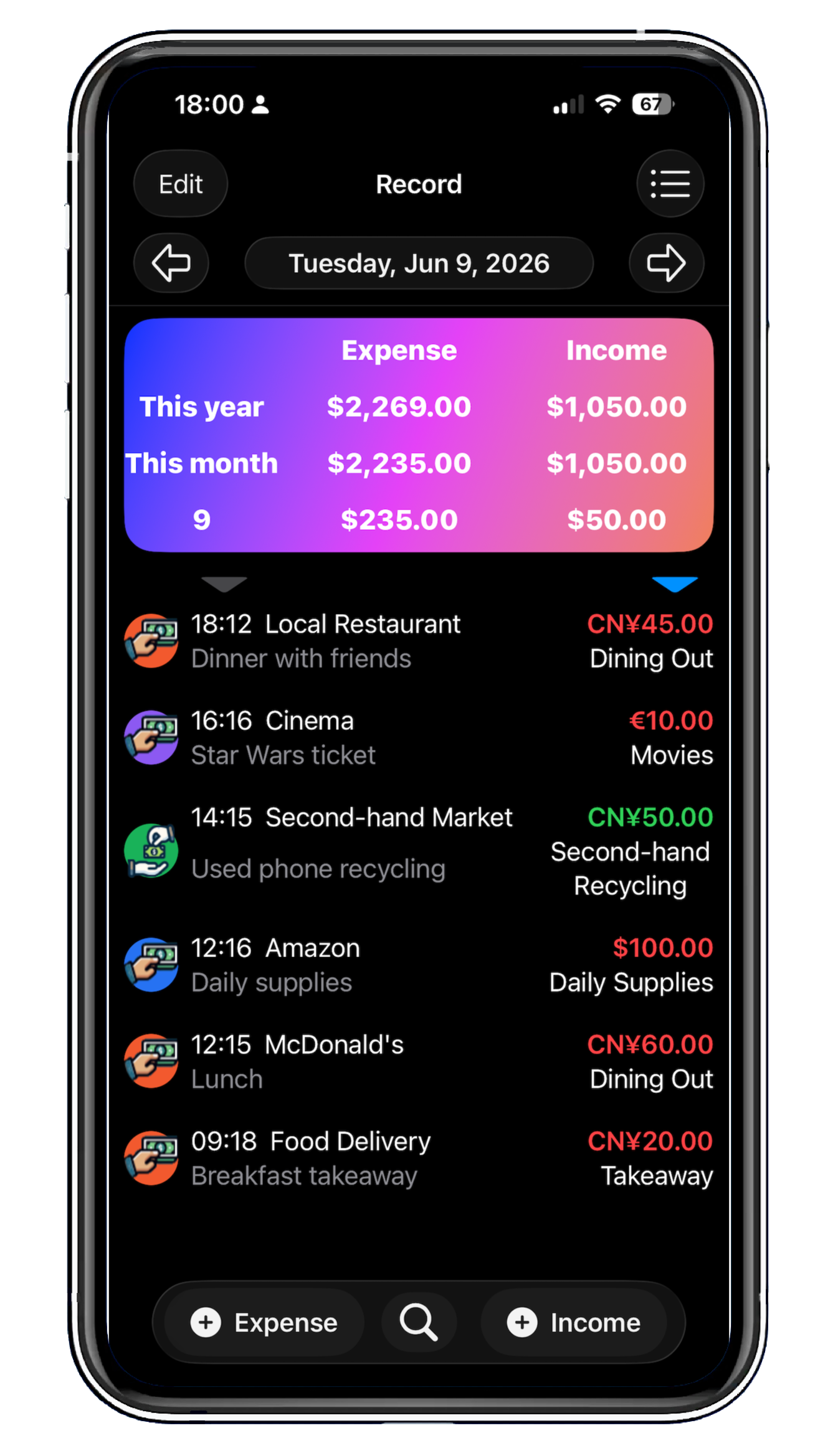
- For 1 and 2, the total income and total expense for the current month and current year are displayed at the top of the page. You can tap the date at the top to select a different date for summarization:
- Records for the whole year (only applicable to 2)
- Records for the whole month
- Records for a certain day
- Tap a record to show more information. Tap an image in the record to display it full screen and zoom in or out with gestures.
- Long Press a record, and in the pop-up menu you can select “Edit” or “Delete” the record.
- You can batch delete, label (see Section 5, Label Management), or move records to other subcategories. To do this, tap “Edit” in the upper left corner. After selecting the records you want to move, tap the corresponding button at the bottom. When finished, tap “Done” in the same position to exit edit mode.
- You can tap the downward triangle above the records to sort records by amount or time.
- Tap at the bottom to go to the search page. You can search for records whose details or merchant information contain specific keywords. Only related records will be displayed (for 2, records in the selected category; for 3, records for the selected label or payment method). The edit and sort buttons in 8 and 9 are also available.
3. Chart
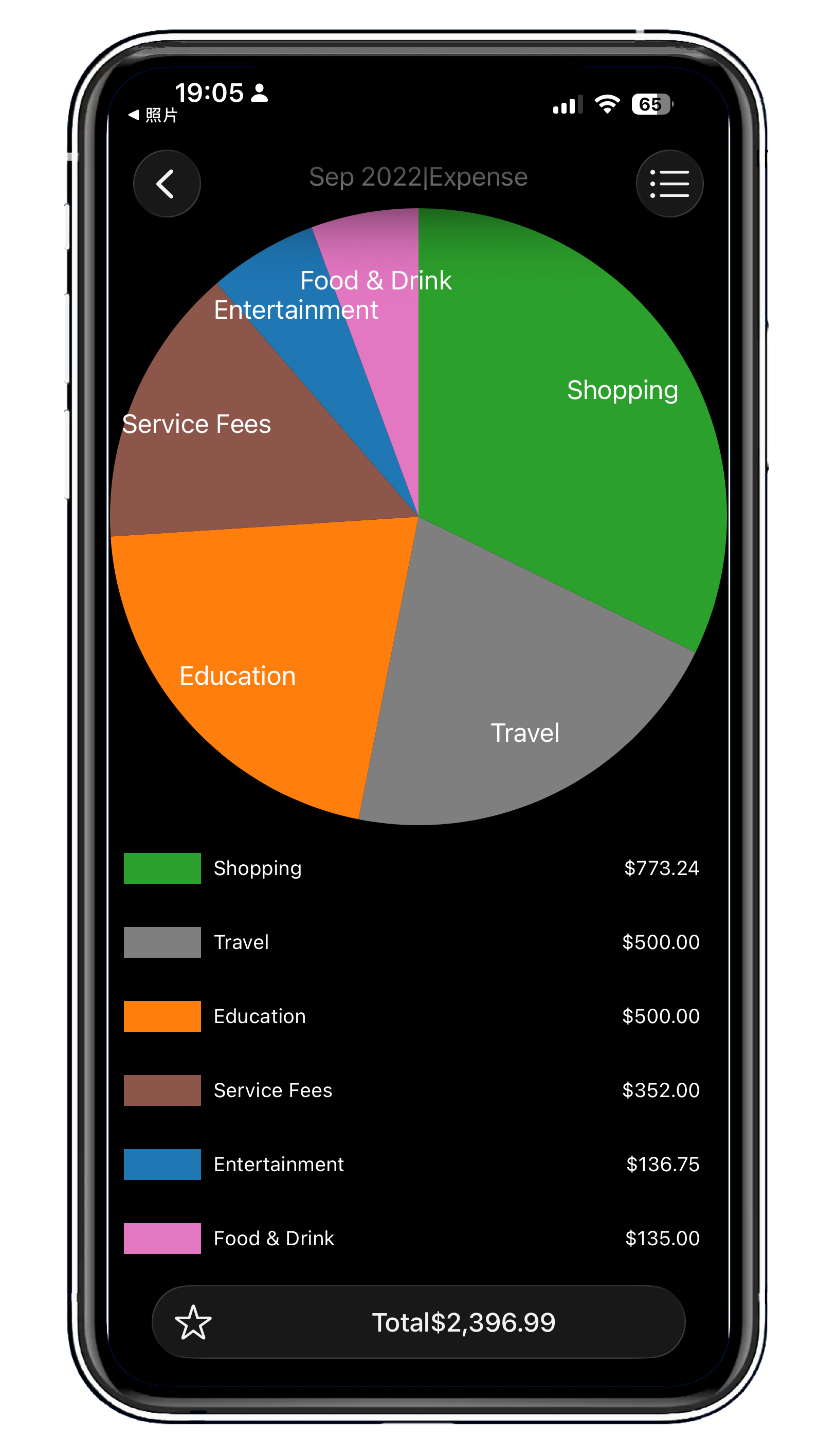
On the “Chart” home page, tap Total income or Total expense to enter the “Chart” summary page. Here you can use charts to summarize statistics by different record fields. For example, you can summarize by year, then summarize each year by month, and so on. Tap “Edit” next to “Summarization method and order” on the “Chart” home page to change this.
After entering a summary page, tap “Home” in the menu in the upper right corner to return to the home page. Tap “Pie chart” or “Bar chart” in the menu to change the chart type.
Tap  in the upper right corner to add the current page to Quick access. After returning to the home page, you can see the added Quick access page and tap it to access the related page directly. Tap
  again to remove it from Quick access.
If the current access page path contains year-month-day, year-month, or only a year field, and it matches the current time, when adding it to Quick access you will be prompted “Do you want to always keep the date on the access path up to date?” If you select Yes, the date on the added Quick access path will always stay as the current date. For example, if the current date is a day in July 2021, and you add the summary of shopping expenses for July 2021 to Quick access, it will be displayed as shopping expenses for this month. After entering August, tapping the Quick access link will automatically open the summary of shopping expenses for August.
4. Settings
Tap in the upper right corner and go to the “Settings” page, where you can see the following buttons and features:
| Auto Sync | Data is automatically synced to other devices via iCloud (you need to be signed in to the same iCloud account). This feature cannot be turned off. | |
| Authenticate | When selected, each time you enter the app, Face ID, Touch ID, or a passcode will be used to verify your identity. | |
| Export to File | Export category and record data to a CSV file. Note: image data in records will not be exported. See the last section of this article for the file format. | |
| Import from File | Import category and record data from a CSV file. During import, records in the CSV file that already exist locally will be ignored. See the last section of this article for the file format. |
5. Template Management
Tap in the upper right corner and go to the “Template Management” page, where you can add records to be added automatically every month (for example, an iCloud service fee of X on the 31st of each month). If the current month does not contain that date, the record is automatically added on the last day (for example, if February does not have the 31st, the record is automatically added on the 28th or 29th).
6. Questions and Feedback
Tap in the upper right corner and go to the “Feedback” page. If you encounter any problems while using the app or have any suggestions, you can submit feedback here. If notification permissions for the app are not enabled, a prompt will appear after entering the “Questions” screen. Tap “OK” to set it up so that you can receive reply notifications in a timely manner.
7. Import/Export File Format
Each line in the imported/exported CSV file contains data for one category, subcategory, label, or record, with fields separated by commas. If a field contains a comma or line break, use \,(full-width comma) and \n to represent them.
A category contains the following fields:
- 0
- Category ID, any string that uniquely identifies the category
- Category name
A subcategory contains the following fields:
- 1
- Subcategory ID, any string that uniquely identifies the category
- Subcategory name
- Parent category ID
- true — income subcategory, false — expense subcategory
A record contains the following fields:
- 2
- Record ID, any string that uniquely identifies the record
- Parent subcategory ID
- Record date (year-month-day hour:minute), such as 2022-01-12 05:15
- Amount, such as 100.00
- 0
- Merchant
- Details
- Label ID
- Payment method ID
- Foreign currency amount
A label contains the following fields:
- 3
- Label ID, any string that uniquely identifies the label
- Label name
- Label color: the RGB values of the color, ranging from 0 to 1, separated by |, such as “0.5|0|0.5”
A payment method contains the following fields:
- 4
- Payment method ID, any string that uniquely identifies it
- Payment method name
- Currency: such as “CNY”
Comments
Comments are reviewed before they appear below the article.
No comments yet. Be the first to comment.